Category Archives: Software
Finally I understand JS (a bit)
It produced a lot of headaches. And yes, it has been described already that
as a lot of articles I read about async in JavaScript, especially those that came out around the time ES2015 (ES6) was new, are just plain wrong. I’m going to clear up the falsehood by presenting a real understanding of the way async works in JavaScript.
Some nice examples are at medium.com and freecodecamp as well as a vid at youtube
.
At the end – I have some working code here, that shouldn’t work according to my understanding of concurrency.
How to monitor any website. At any time interval. With Telegram notification. For Free.
These instructions work for OSX Catalina only and are a bit different than the Linux version shown at urlwatch.
python3 -m pip install pyyaml minidb requests keyring appdirs lxml cssselect html2text python3 -m pip install urlwatch EDITOR=nano urlwatch --edit # CTRL+X leave the editor without saving
Then edit ~/Library/Application Support/urlwatch/urls.yaml
kind: url
max_tries: 3
name: Camptoi
url: https://www.camptoi.de
filter:
- element-by-id: product-desc-18713727425
- html2text:
body_width: 0
ignore_images: false
ignore_links: false
inline_links: false
method: pyhtml2text
pad_tables: false
single_line_break: true
unicode_snob: true
After that we create the Telegram bot by sending
/newbot
to user BotFather and record the <API> from the response.
We also need to send a dummy message to the new bot so we can look up the sender <ID>
https://api.telegram.org/bot<API>/getUpdates
<API> and <ID> are both entered into ~/Library/Application Support/urlwatch/urlwatch.yaml
...
telegram:
bot_token: '<API>'
chat_id: '<ID>'
enabled: true
---
As we have no cron under MacOS we need a parameter file to run launchd. Should be placed at ~/Library/LaunchAgents/com.urlwatch.plist
<?xml version="1.0" encoding="UTF-8"?>
<!DOCTYPE plist PUBLIC "-//Apple//DTD PLIST 1.0//EN" "http://www.apple.com/DTDs/PropertyList-1.0.dtd">
<plist version="1.0">
<dict>
<key>Label</key>
<string>com.urlwatch</string>
<key>Program</key>
<string>/Users/wjst/opt/anaconda3/bin/urlwatch</string>
<key>RunAtLoad</key>
<true/>
<key>StartInterval</key>
<integer>9000</integer>
<key>KeepAlive</key>
<true/>
</dict>
</plist>
Ultimately, the agent is started (or stopped) using
launchctl load -w ~/Library/LaunchAgents/com.urlwatch.plist launchctl unload ~/Library/LaunchAgents/com.urlwatch.plist
How to scrape a website with R II: WYSIWYG
Part II
Although Rselenium allows a screenshot of the current browser window
library(RSelenium)
remDr <- remoteDriver(
remoteServerAddr = "localhost",
port = 4444,
browserName = "Chrome"
)
remDr$open()
remDr$navigate("http://google.com")
remDr$screenshot(display = T) # remDr$screenshot(file="screen.jpg")
I found it extremely difficult to control a webbrowser running in a Docker container – looking up the DOM tree, injecting javascript etc is a lot of guess work.
So we need also a VNC server in the docker container as found at github.
After starting in the terminal
docker run -d -p 4444:4444 -p 5900:5900 -v /dev/shm:/dev/shm selenium/standalone-chrome:4.0.0-beta-1-prerelease-20210207
we can watch live at vnc://127.0.0.1:5900 what’s going on.
Sometimes it is better to switch bikes not gears
My 3 favorite programs? R, Bookends and Exposure.
The first choice is Rstudio (since 2012, being a long time SAS user). Here is the most recent JJ Allaire keynote
I was a bit with late with Bookends in 2018 (being a long time Sente user) but here is an introduction by Jon Ashwell.
And I am currently migrating to Exposure (after having used Lightroom for 13 years) by Jeff Butterworth
Life changes every day while it is sometimes better to switch bikes not gears.
Breaking up long chains in R’s dplyr/magrittr code and calling sub functions
Having several long and redundant chains in R ‘s magittr code, I have now figured out how to pipe into named and unnamed functions
f1 <- function(x) {
x %>% count() %>% print()
}
f2 <- function(x) {
x %>% tibble() %>% print()
}
So we have now two named functions with code blocks that can be inserted in an unnamed function whenever needed
iris %>%
# do any select, mutate ....
# before running both functions
(function(x) {
x %>% select(Species) %>% f1() %>% print()
x %>% f2() %>% print()
})
We can make a variable global from inside a function using <<- assignment but I have not found a way to continue the dplyr chain with any returned variable. So we are trapped inside the function
iris %>%
(function(x) {
result <<- x %>% head(1)
})
How to save a Twitter thread
This is not a trivial task as most browser produce garbage when printing to pdf. Also screenshots do not help so much with multipage threads. “Unroll” also doesn’t work reliable.
So I have been using the archive.today plugin before producing the pdf, but this method is time consuming as it needs a captcha.
Having now Selenium running in a docker container, there is a more convenient solution where just two lines of R are sufficient
remDr$navigate("https://twitter.com/SZ_Muenchen/status/1346425350394236930")
remDr$screenshot(file = 'screen.png')
Login is also possible as explained at github…
username <- remDr$findElement(using = "name", value = "session[username_or_email]")
username$sendKeysToElement(list("XXX"))
passwd <- remDr$findElement(using = "name", value = "session[password]")
passwd$sendKeysToElement(list("XXX", "\uE007"))
RKI Daten sind tages- und nicht fallbasiert
Leider kann man mit den RKI Daten nicht direkt in ein Regressionsmodell gehen, weil an vielen Tagen mehr als ein Fall in derselben Kategorie auftritt Continue reading RKI Daten sind tages- und nicht fallbasiert
How to scrape a website with R I: Using a browser generated cookie
While there are quite some SO examples out there how to manage the login, here are the ncessary steps whenever you need to login in manually and have to start with a browser cookie. First install the “EditThisCookie” plugin in Chrome and export the cookie Continue reading How to scrape a website with R I: Using a browser generated cookie
Better than a streamdeck: the Mac touchbar
I have been thinking to buy an Elgato Streamdeck as we have to lecture now also online during winter 2020.
![]()
While the Streamdeck mini would be a nice addition to the Elgato 4 K Camlink (that connects the Nikon) as well as the Epoc Cam software (that connects the Iphone) for easy switching input channels, I ultimately decided against this solution and just reconfigured the Touchbar for OBS using Better Touch Tool.

Live video projection over 30 meter
Here is a working hardware combination after several failed attempts – jerky moves, black screen, lost signal, color shifts.
Nikon Z6 – switch video toggle @back of camera for clean HDMI output, set video menu to 60 frames (to avoid display lag), setting c3 standby on. 1800€ incl FTZ.
Sirui VH-10X Fluid, 100€ used.
subtel external power supply for Z6 (only this one allows closing of battery compartment). 56€.
Rode VideoMicro Compact. 88€.
Elgato Cam Link 4K with short USB C connector (to avoid shear stress). 122€.
Macbook Pro with USB-C Digital-AV-Multiport-Adapter (other display port and hdmi did not show up as external display in OBS). adapter 72€.
PW-HT225PIR HDMI Extender with power adapter (USB power alone not sufficient, HDMI amplifier failes consistently). 30€.
30m Cat6 cable. 30€.
Short throw Optoma UHD42 4K Beamer – UHD. 1200€
Laborjournal einzelne Artikel archivieren
Ist ganz einfach. Neuestes Heft herunterladen und splitten
# brew install ghostscript gs -dBATCH -dNOPAUSE -q -sDEVICE=pdfwrite -dFirstPage=6 -dLastPage=9 -sOUTPUTFILE=Krull.pdf LJ_20_07.pdf gs -dBATCH -dNOPAUSE -q -sDEVICE=pdfwrite -dFirstPage=14 -dLastPage=17 -sOUTPUTFILE=Antes.pdf LJ_20_07.pdf gs -dBATCH -dNOPAUSE -q -sDEVICE=pdfwrite -dFirstPage=26 -dLastPage=29 -sOUTPUTFILE=Jaeger.pdf LJ_20_07.pdf gs -dBATCH -dNOPAUSE -q -sDEVICE=pdfwrite -dFirstPage=34 -dLastPage=37 -sOUTPUTFILE=Jeschke.pdf LJ_20_07.pdf
Edit R plots in Keynote
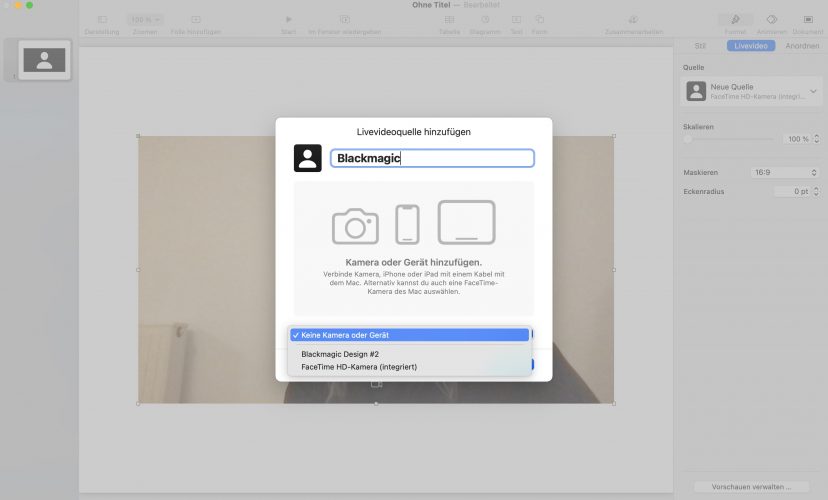
Unter MacOS Keynote streamen mit Video
- OBS installieren mit Virtual Camera Plugin
- Powerpoint/Keynote als HTML exportieren und in lokalem Browser aufrufen
- OBS Template erstellen mit Text, Kamerainput und Browserwindow
- Virtual Camera in OBS starten
- In zweitem Browserwindow Konferenz starten und Einstellungen > Sicherheitscheck > Website > Einstellungen > Konferenz > Virtual Camera auswählen
Neu:
- OBS installieren
- Keynote in Fenster wiedergeben

- OBS Template erstellen mit Text, Kamerainput und Fensterinput

Graphical display of outbreaks: Transmission trees
Let’s start with some examples from the literature, find out necessary elements, compare different versions and develop a R template for general use.
“Exploding Stars”

“Tetris”

“Clean Undeterministic”
“Clean Tree”

“Tree Addons”

“Railways”

“Simple ”

“Vertical”

“star bus”

“Mathematical”

“Genetics”